Panel Designer Premium

Every tool for a panel that is right the first time.








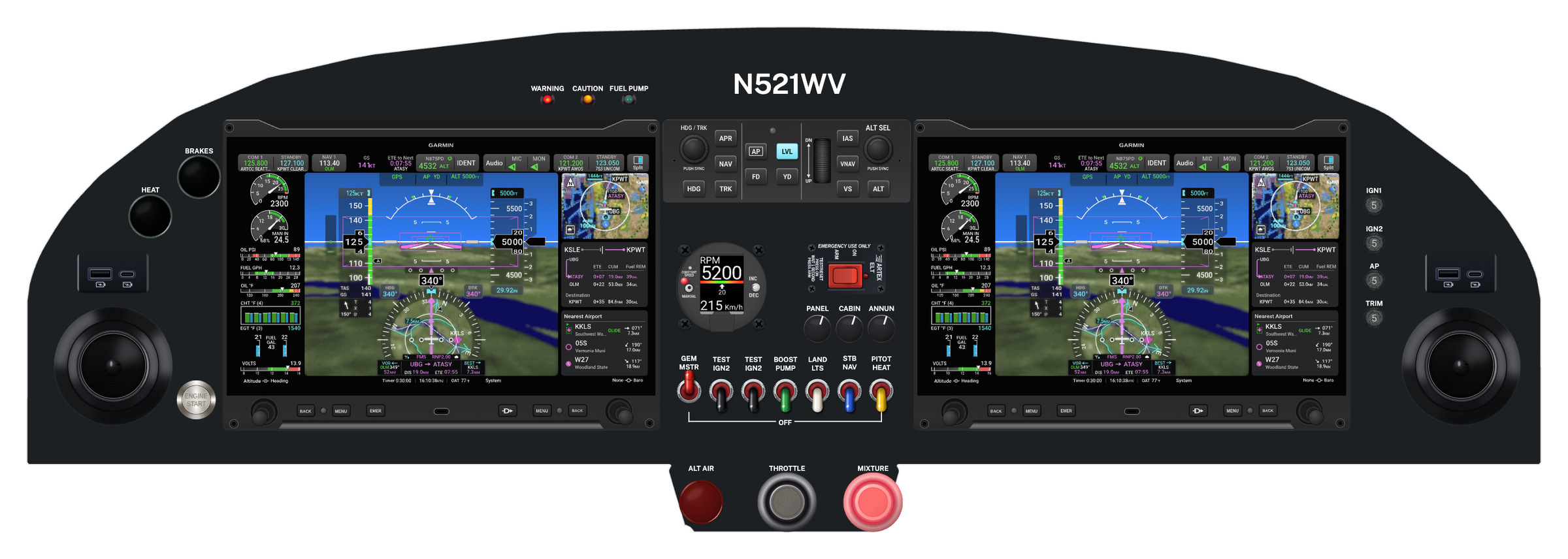
Any account can place instruments on a panel template and take them off again. Premium opens every other tool in the Panel Designer: add-on panels, placards, even spacing, alignment, snapping, zoom, construction lines and more.

$99 a year. Renews yearly; turn renewal off on your account page at any time.




A span placard: a row of switches selected, one OFF bracket drawn beneath them

New

Add-on panels in the Panel Designer

Add-on panels

Size your own panel pieces and place them beside the aircraft's panel: a center console, a switch panel, a subpanel. Type the width and height, give the corners a radius, a bevel or a cove, and put instruments, switches and placards on the piece as on the panel. It is in every picture of the design and in a CAD, Cut, Paint & Label request.

Placards

Placards in the Panel Designer

Placards

Labels on the panel or on an instrument, in five fonts, any letter height up to 3 inches, in the colors, background and border you choose. Attach one to a switch and it moves with the switch.

Span placards in the Panel Designer

Span placards


Select a row of switches, press Placard, type OFF, and one bracket spans the row, its ends on the first and last switches. Move a switch and the bracket follows.

Placing and spacing

Add several in the Panel Designer

Add several


Put down a row or a block of the same instrument at the spacing you set: twenty breakers a quarter inch apart in one move.

Distribute in the Panel Designer

Distribute


Space a row evenly with one click, or spread it across an exact width you type.

Align and center in the Panel Designer

Align and center

Line up edges or centers, center one instrument on another, or center it on the panel.

Move by a distance in the Panel Designer

Move by a distance

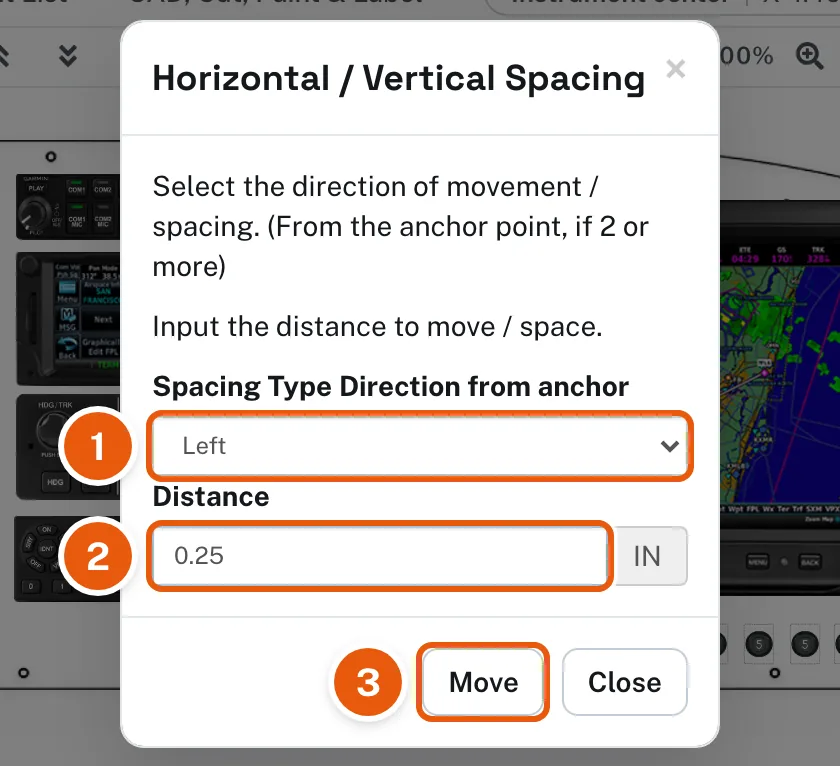
Move or space the selection by an exact direction and distance, in inches.

Precision

Straight-line moves in the Panel Designer

Straight-line moves

Hold Shift and drag: the instrument moves only across or only up and down, so it stays in line.

Snap-To in the Panel Designer

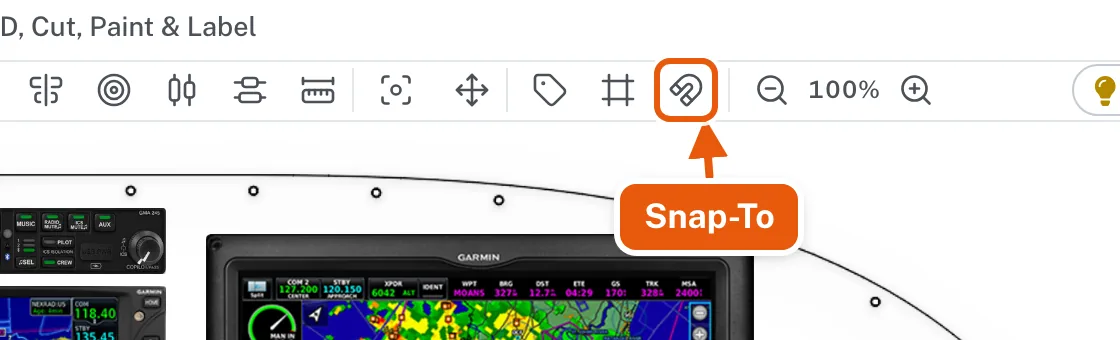
Snap-To

Edges and centers snap to the panel, to other instruments and to construction lines.

Construction lines in the Panel Designer

Construction lines

Horizontal and vertical guide lines at exact positions, to lay out rows and columns.

Zoom in the Panel Designer

Zoom


Zoom in for fine placement, from the tool row or with Ctrl or Command and the scroll wheel.

Positions and measurements in the Panel Designer

Positions and measurements


Each instrument's X and Y from the center of the panel template, the pointer's position, and a tool that measures between instruments. The arrow keys nudge the selection a hundredth of an inch.

Organizing

Group in the Panel Designer

Group

Move a set of instruments as one, and keep its layout.

Lock in the Panel Designer

Lock

Lock what is placed so it cannot be moved by accident.

Arrange, undo and redo in the Panel Designer

Arrange, undo and redo


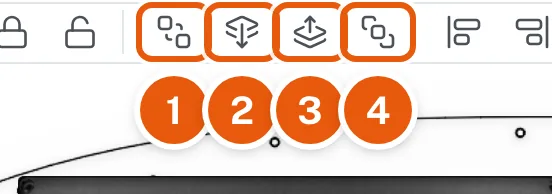
Bring an instrument forward or send it back, and undo or redo every step: moves, adds, deletes, placards and lines.

Your designs

Copy a design to try a variation without losing the first: the copy has everything on it, the instruments, placards, lines and add-on panels. Rename it, and compare designs side by side.

With any account

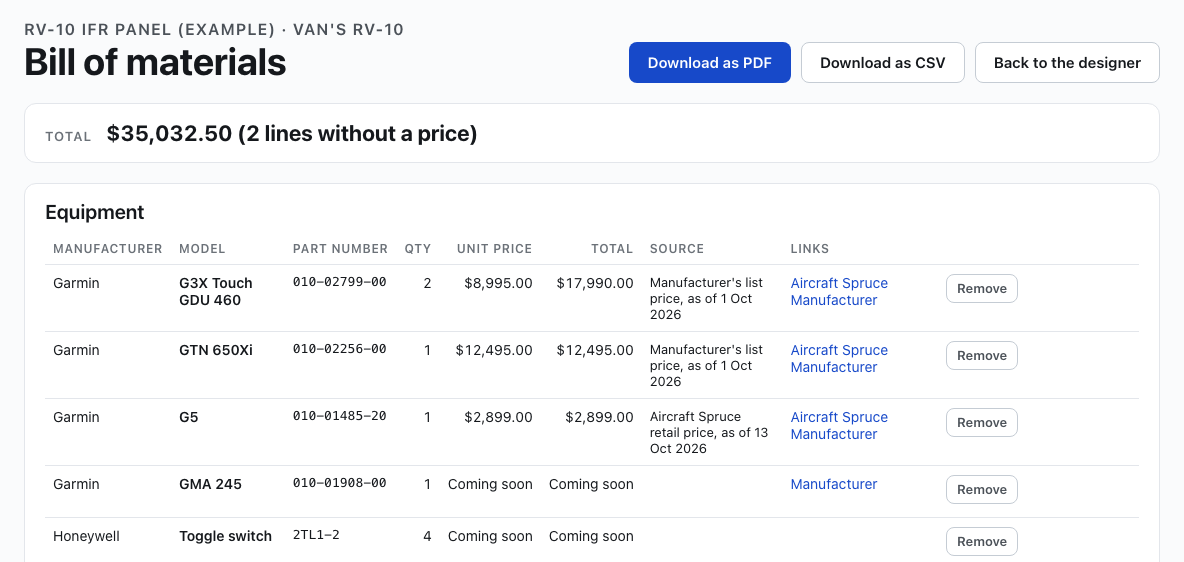
Place instruments from the Equipment Library and delete them, see the equipment list, export a picture of the design, and send it to our shop for CAD, Cut, Paint & Label.

Design it once, and design it right

Every tool on this page, for $99 a year. See each one step by step in Help.