
One account opens every Hangar Flying app. You sign in with your email address and a password.
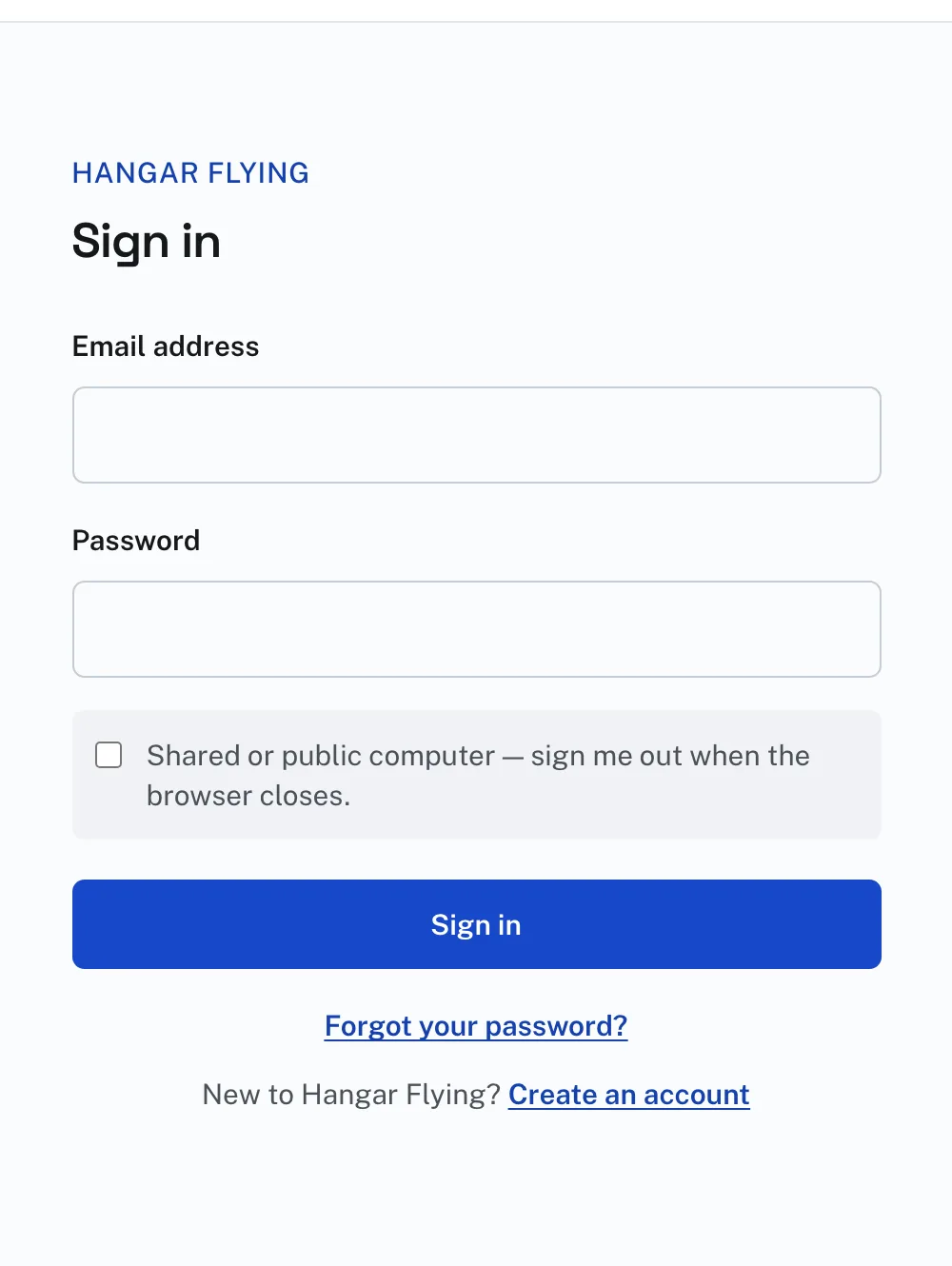
To sign in:
- Press Sign in at the top right of any page.
- Type your email address and your password, and press Sign in.
- Forgotten the password, or never set one? Type your email address and press Forgot your password?. We email you a link to choose one. The link works once and for a short time, so use it soon. If you asked more than once, open the newest email.
Already a Panel Designer member? Sign in with the same email and password you use there. Your account here is made as you sign in, with your name and your membership. Your Panel Designer account carries on as before.
Signing in on a computer other people use? Check "Shared or public computer" and you are signed out when the browser closes.
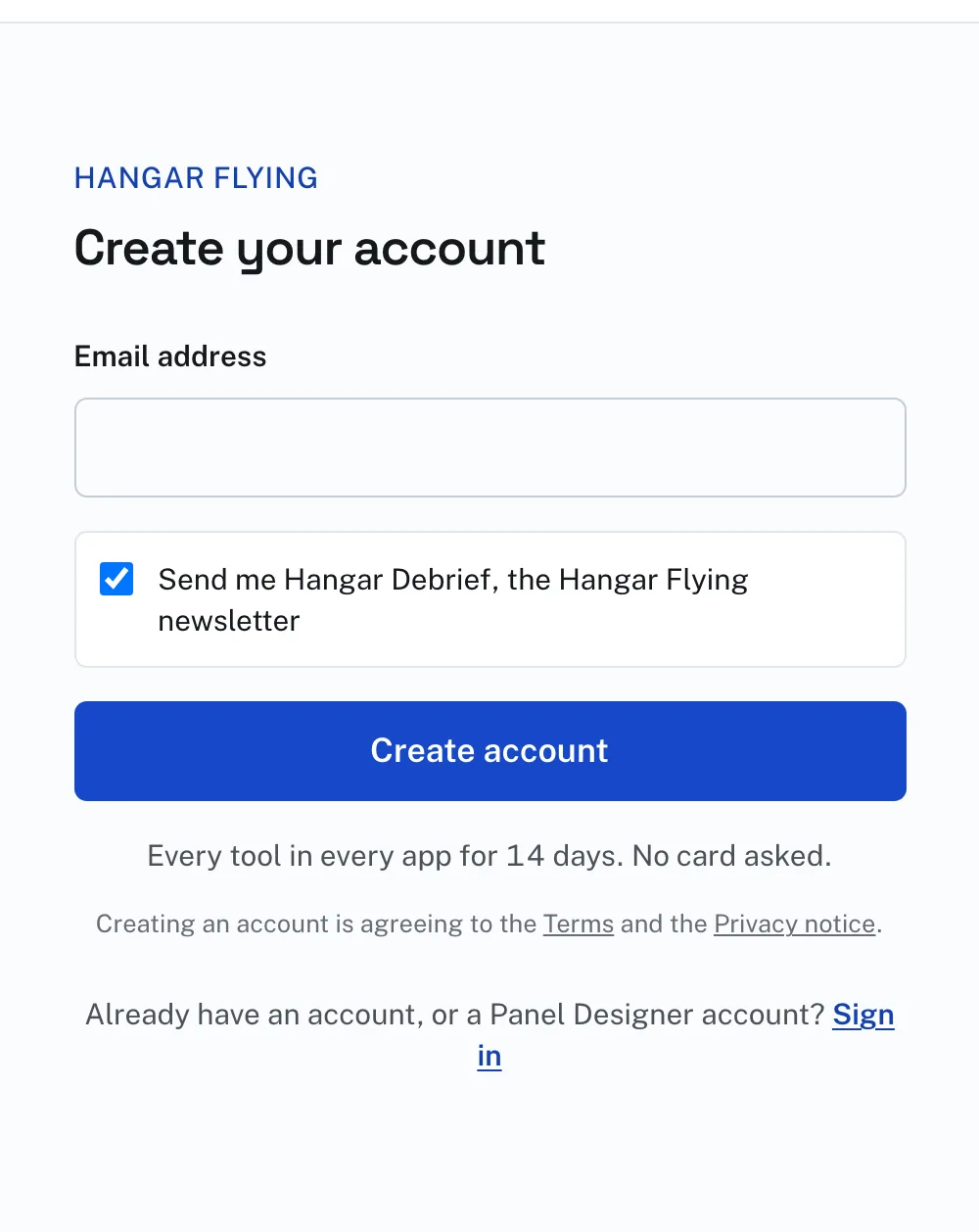
To create an account:
- Press Join at the top right of any page, or Create an account on the Sign in page.
- Type your email address. The checkbox "Send me Hangar Debrief, the Hangar Flying newsletter" is checked to begin with. Uncheck it if you do not want the newsletter.
- Press Create account. The page "Is this right?" shows the address back to you. Read it carefully: if it is wrong, the email goes somewhere else and nothing on screen will tell you. Press Yes — send the link, or Change it.
- Open the email and press the link. On the page that opens, press Continue.
- Choose a password, type it again, and press Save password.
- The page About you then asks once for your first name, last name, phone, city, state or province, country, home airport and aircraft. All of them are needed. Press Continue.
A password needs at least 8 characters, and the most used ones, such as password123, are refused. There is no rule about capitals or symbols. Length is what makes a password hard to guess, so a few words you will remember are better than a short one with symbols in it. You can change it any time under Profile. Choosing a new password from an emailed link signs out every other computer you were signed in on.
The address you sign in with is who you are. If you use a different address next time you get a different, empty account, so pick one and stay with it.
Signing in brings you to Home, unless you were on your way to a particular page. Then you go straight back to it. To sign out, press the button with your initials at the top right and press Sign out.