
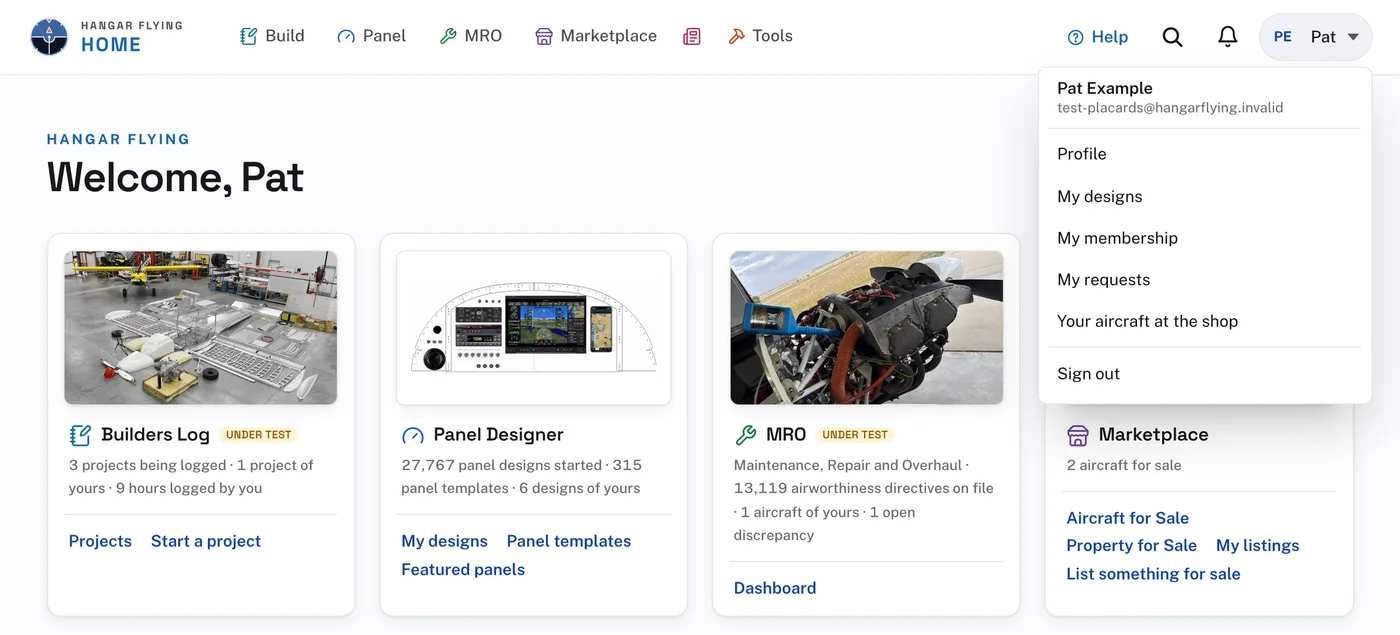
The button with your initials, at the top right of every page, opens your account menu: Profile, My designs, My membership, My requests, Your aircraft at the shop and Sign out. The same account is used in every app.
Profile has a part for each app, listed down the left: Hangar Flying, Panel Designer, Marketplace, and MRO once you use it.
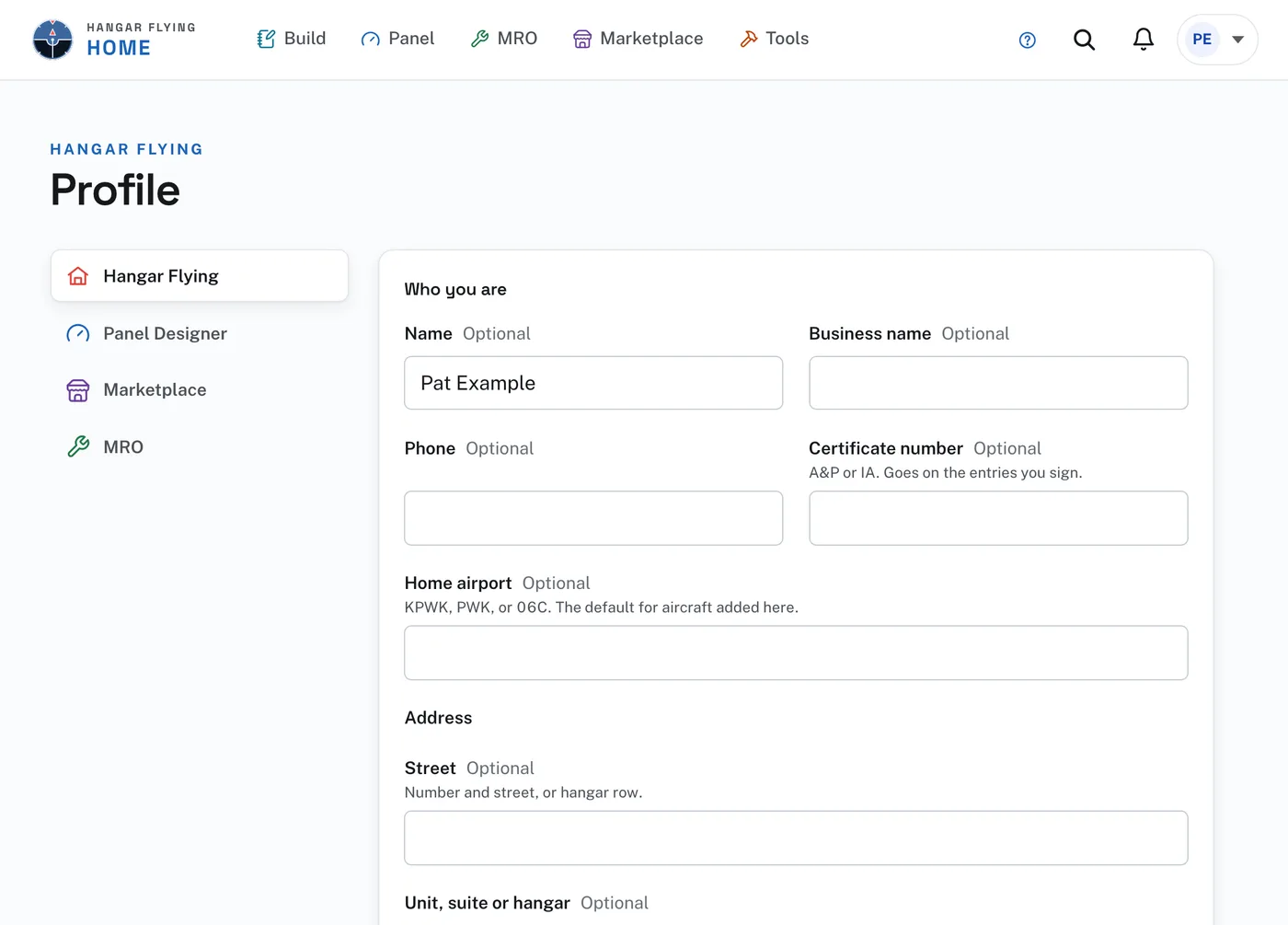
Hangar Flying, the part Profile opens on:
- Who you are: your name, business name, phone, certificate number (A&P or IA, which goes on the entries you sign), home airport and address. Press Save.
- Email address: type a new address and press Send a confirmation link. The change is made when you press the link in that email, signed in to your account.
- Hangar Debrief: whether the newsletter is sent to your address.
- Password: type your current password, the new one, and the new one again, and press Change password.
- Download your records: Download everything gives you one plain-text file of every aircraft, maintenance record, directive and note.
- Close this account: at the foot of the same card.
The other parts:
- Panel Designer: My designs, and Membership, card and invoices. Both open on the Panel Designer. Beside them, Member or Visitor says where the account stands; while every tool is open it also says the last day, and after that, Become a member.
- Marketplace: My listings and Saved searches. Questions, answers and new matches for a saved search come to your email address.
- MRO: whether the account is for your own aircraft or a maintenance shop, and Coming-due alerts. The alert is one email a day, only when something changes. Choose 30, 60 or 90 days ahead, check what it covers, and add up to five more addresses to send it to. Uncheck everything to stop it.
The bell at the top right opens Notifications. My requests lists what you have sent us and our answers. My membership opens your membership on the Panel Designer.
Closing the account:
- Download everything first if you want a copy.
- Press Close this account…, check "I have a copy of what I want to keep.", and press Close this account.
- Closing signs out every device and sets your records aside. Nothing is destroyed by closing.
- Signing back in during the waiting period shows when the account was closed and how long its records are held. Press Reopen this account to have it back. Download everything still works there.
- After the waiting period, a closed account’s records may be removed for good.
What we hold about you and where it goes is written down in the privacy notice, and the terms of service say what the site is and is not. Both are linked at the foot of every page.