
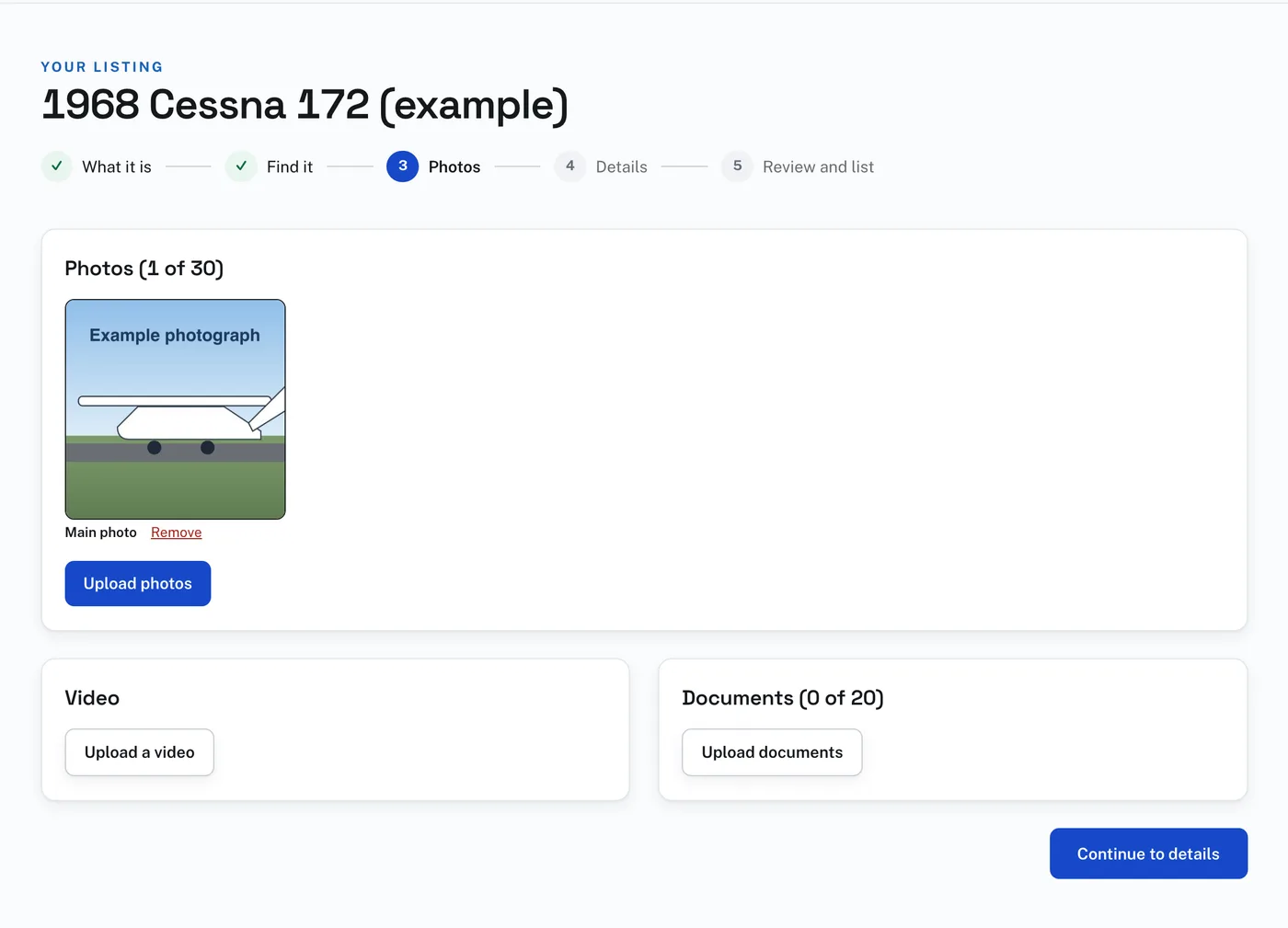
To add photographs:
- On the Photos step, press Upload photos.
- Choose the photographs. You can choose several at once. They upload as soon as you choose them, and the button shows how far it has got.
- The first photograph is the Main photo, the one on the card. Press Make main under another to put it first.
- Press Remove under a photograph to take it off the listing.
A listing holds up to 30 photographs and needs at least one before it can be listed. A photograph is a JPEG, PNG or WebP file of up to 12 MB.
Upload a video takes one video of up to 95 MB. A longer one goes on YouTube: put its address in YouTube links on Details, up to 3. Buyers see the videos straight under the photographs.
Upload documents takes up to 20 documents, such as logbook pages, the weight and balance or the POH. Each is a PDF, JPEG or PNG file of up to 25 MB. Documents are shown only to people who are signed in.
If a file is refused, the reason shows under the button you pressed.
After a listing has been listed, the same panels are on its page under My listings, so you can add or remove photographs at any time.