
To write an entry:
- On the project’s Log page press New entry.
- Under “What did you do?”, write the work in your own words.
- Under Photographs, press Upload photo or doc to take photographs or choose them from the phone. Several can be chosen at once, and each can be given a caption.
- Enter the Hours if you keep them. The Date is today’s; change it for work done earlier. The Section is the one you last worked in.
- Press Save and sign. The entry is signed with your name and you are returned to the log. Save as a draft keeps it unsigned, to finish later.
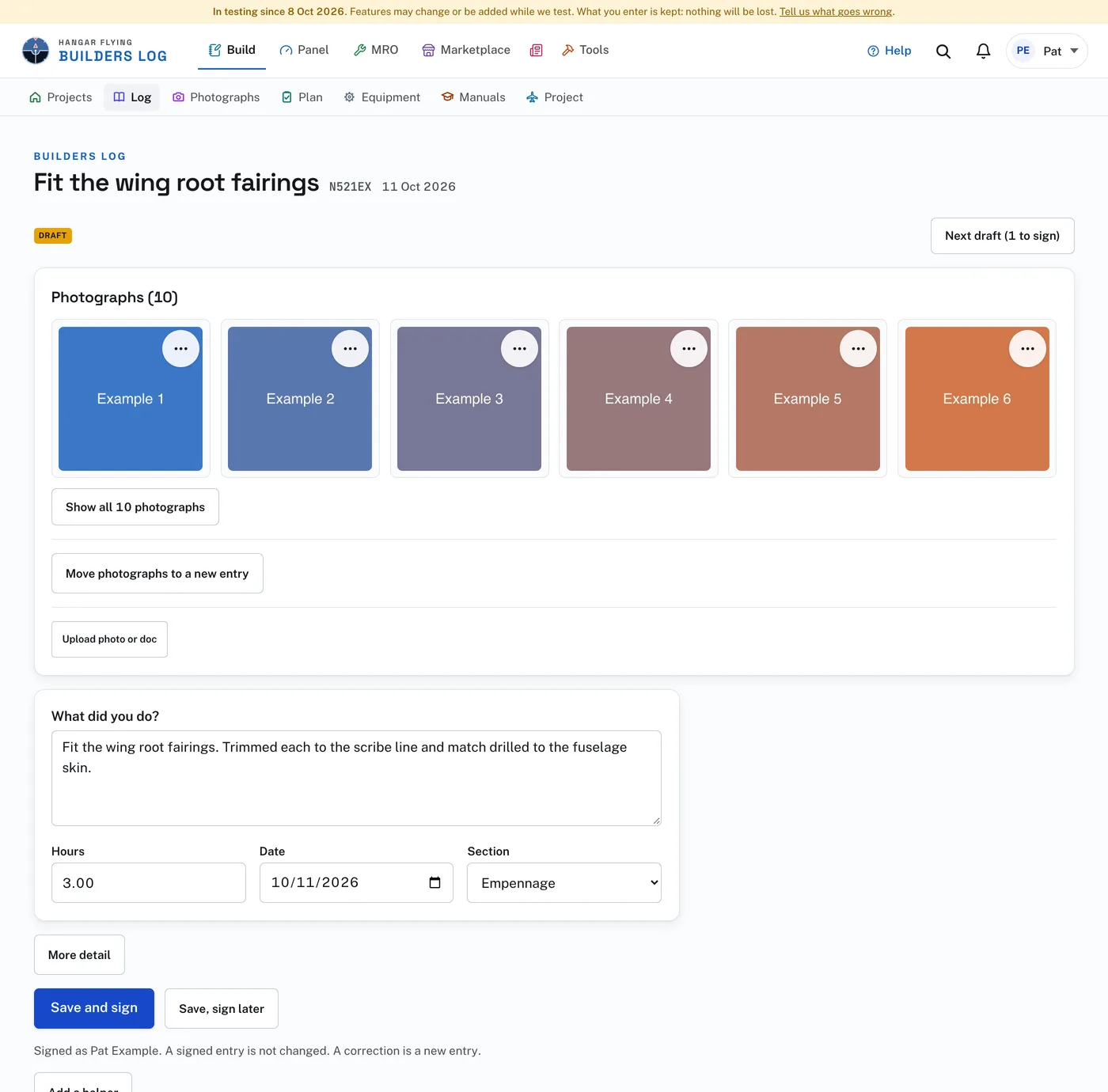
You do not have to name a task: it is the first sentence of what you wrote, unless you type one. More detail, under the form, opens the other fields when you want them: Task, Performed by, Last day (for an entry that covers more than one day), Lesson learned, Plans page and step, Methods and materials, and Kind of work (Deburring, Priming, Riveting and the rest). Private entry keeps the entry out of a shared log. Add a helper takes the Helper’s name and the Helper’s hours. Check Paid help for somebody who was paid.
An entry saved with Save as a draft, or made by importing photographs, is marked Draft. It opens as the same short form, filled in: change anything and press Save, sign later, or Save and sign. A signed entry opens as cards to read. Photographs, helpers and parts can be added to a draft at any time. Delete this entry, at the foot of any entry, draft or signed, takes it and its photographs out of the log; it asks once more before it does.
Hours are yours to write. A draft with photographs shows under Hours when the photographs were taken by the camera’s own clock, for example 9:30 AM to 6:23 PM. A photograph taken as a session starts and another as it ends gives the session’s length, and Use, under Hours, writes that figure in. If you gave a usual session on the Import page, it is offered the same way.
A press on a photograph opens it large, with Caption, Add a pin, Download and Archive under it. Close returns to the entry. The three dots on a photograph’s corner offer the same choices. Add a pin puts a numbered dot on one spot with a note beside it: press Add a pin, press the spot, type the note, and press Save pin. Pins are drawn on the photographs in the copy of the log you download.
On a draft, Move to another entry takes a photograph to another draft, its caption and pins with it. Move photographs to a new entry, under a draft’s photographs, makes a draft of its own for the same day from the photographs you check, for when one day was really two jobs. Join with another draft, at the foot of a draft, does the opposite: it brings another draft’s photographs, hours and words into this one.
Find pages, under Plans page and step, looks in your own manuals for what you wrote as the task and the work, and lists the pages it most likely is. Open each to check it, check the right ones, and press Add the checked pages to write them into the box. It reads nothing new and costs nothing.
The Log page lists every entry, newest first, grouped by month; a draft is marked Draft. A bar above the list counts the drafts to sign, and Review drafts in it opens the first one. Search the log opens the search box, with Section and Kind of work to narrow it.
To sign an entry:
- Open the draft. Review drafts on the Log page opens the first one.
- A draft is the same short form as a new entry, filled in. Write or correct what you did, and the hours.
- Press Save and sign. The next draft opens, in the order the work was done; after the last one you are returned to the log. A draft with no task takes the first sentence of its words as the task.
A signed entry is not changed. A correction is a new entry: open the signed entry and press Correct this entry. A new draft opens carrying the same words. When it is signed, the earlier entry is marked Superseded by a later entry and stays in the log. Photographs can still be added to a signed entry.
An entry marked Old Builder’s log was carried across from the Builder’s log hangarflying.com had before, with its date, words, hours and photographs. It was published there, so it is not a draft and is not changed, and it is not signed here: it shows the day it was posted there. A log that was private there is Only me here. Expenses marked private there were not carried across.
Share this entry, on a signed entry, opens the words of the entry for you to change, with its photographs, up to ten. Share hands them to your phone’s or computer’s own sharing, so they go to Facebook, Instagram, a message or wherever that device shares to. The site posts nothing itself. A browser that cannot share photographs shares the words alone, and Copy the words is there for one that cannot share at all. If your log is shared with anybody, its address is added to the words.
Delete this entry, at the foot of an entry, takes it and its photographs out of the log; it asks once more first. Nothing is destroyed. Restore, beside the words Entry deleted, puts it straight back. Later, Deleted entries at the foot of the Log page lists each one with its date and whether it was signed: press Restore and the entry opens, as it was.
Search the log finds entries by any words in them, including a part number or a serial number. The two lists beside it narrow the log to one section or one kind of work. Show all returns to the whole log.