
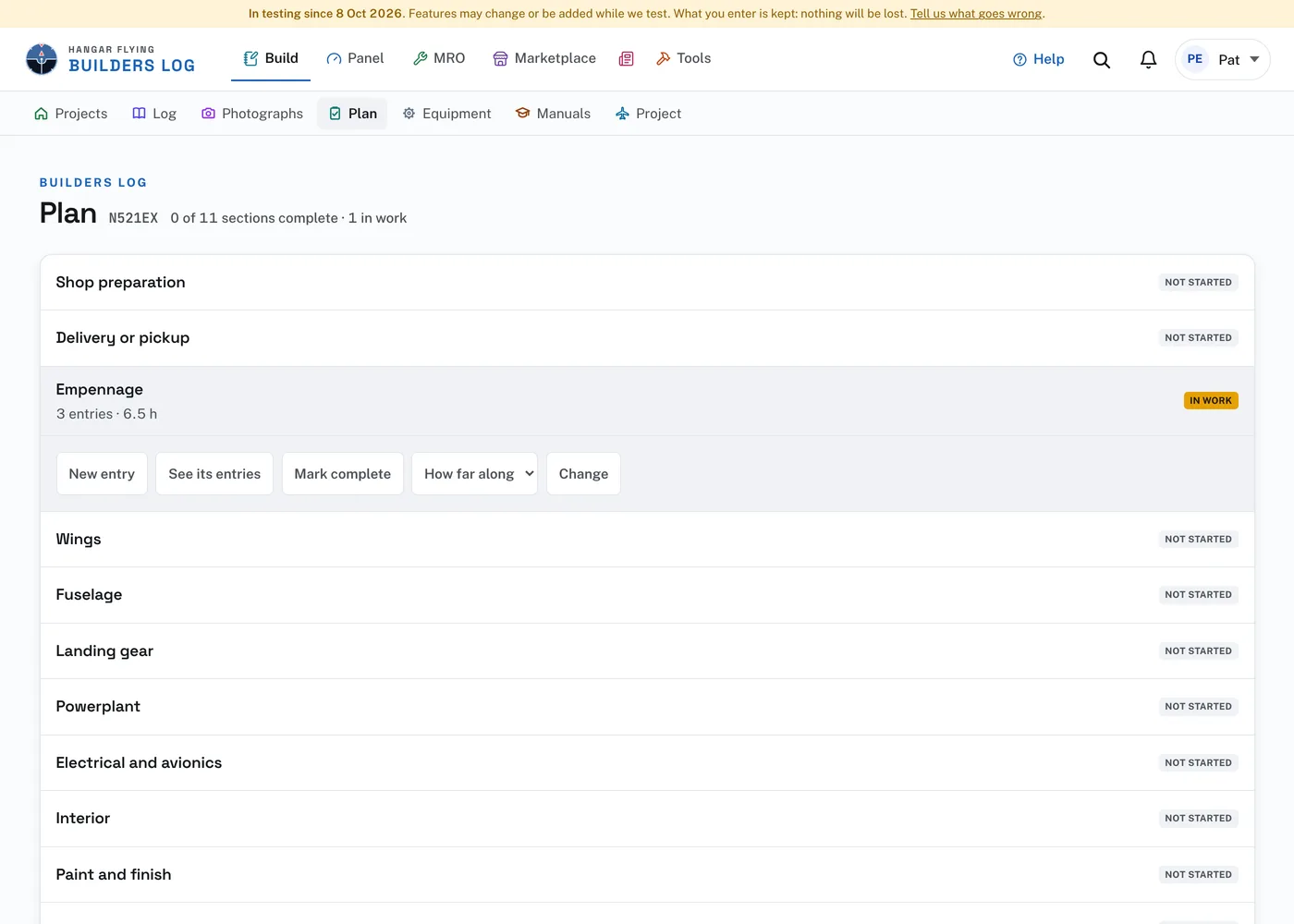
Plan lists the sections of the build, in order. Each section shows its entries and hours, and a mark: Not started, In work, or Complete with the date. The entries line opens the log narrowed to that section.
Selling the project? Press Hand over this build on the Project page. Download your copy first; it is the only place your voice notes go. Enter the buyer’s email and they get a link good for 14 days. Nothing moves until they accept. Then the whole build moves to their account: entries, private ones too, photographs, parts, the equipment list, the plan and the manuals, and the aircraft in MRO. Your signed entries stay under your name, and the Project page and the inspection packet record the change of hands with the date.
With your kit’s manual uploaded, press Use my manual’s outline on the Plan page. The lines of the manual’s contents, each with its page, go under your sections, and no entry moves. The site sorts them by name; a press on a line lets you move one that landed in the wrong section. Only the titles and page numbers are used, and only in your own project.
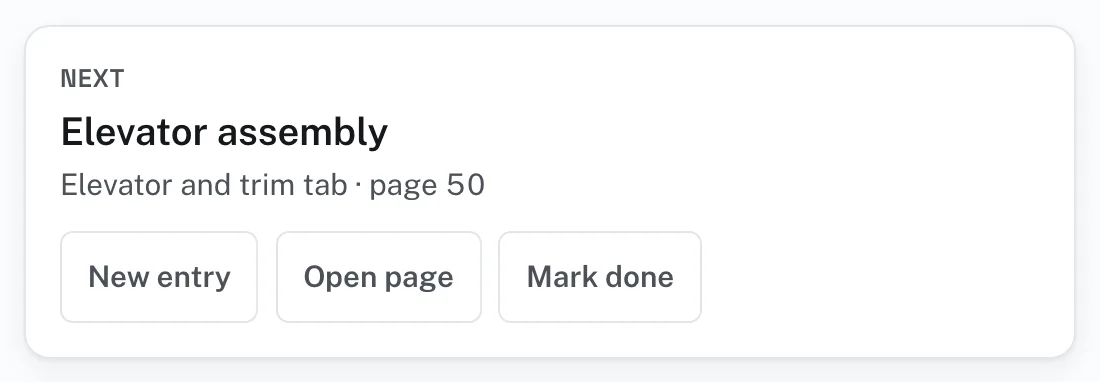
Next, at the top of the page, is the first line not yet done, in the manual’s order, with New entry, Open page and Mark done. New entry starts with the line’s words and pages. A line shows In work once an entry cites its pages; only you mark it done. Press the box beside a line to tick it. A press on the line itself opens Done up to here, for a build already under way, and Not applicable, for a line that is not on your aircraft. Optional lines are not counted unless you do them. Add a line puts in one of your own. Once a line is done, the section’s figure comes from the lines.
Press a section to open it. New entry, on a section, starts an entry in that section. Mark complete dates a finished section, and Reopen undoes it. How far along sets a figure from 10% to 90% for a section in work.
Change, on a section, renames it, gives it the number the plans use, moves it with Move up and Move down, or removes one that has no entries with Remove section. Add a section is at the foot of the page.
When your manuals have been read, a section you have not set may show "From your manual: about" and a figure. It is worked out from how much of the manual’s chapter your entries cite. Use, beside it, sets the section to that figure. Until you do, the Log page shows the figure paler, with "about".
Hours by person, at the top of the Plan page once hours are logged, totals the hours of the builder, each helper and any paid help. The Log page shows the same, the hours for each month, and the sections with a bar for how far along each is.

Export, on the Project page, downloads the whole log as a ZIP file with Download the log and photographs: log.html to read or print, log.json for another program, and every photograph in a folder, named by the date of its entry. A large log comes as several parts, each with its own button. The export is yours on any day, with or without a membership.