
A project keeps your own copies of the kit’s manuals as PDF files: the assembly manual, the parts manual, the figures. They are shown to nobody but you.
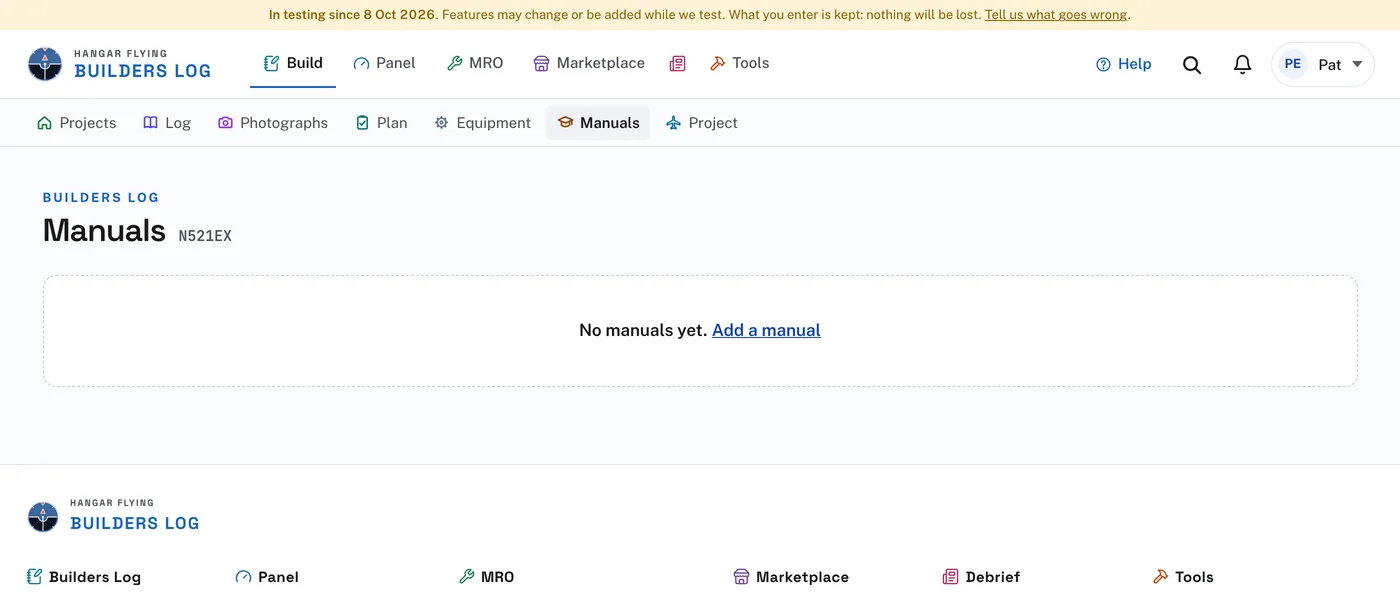
To add a manual:
- Open Manuals in the row under the bar and press Add a manual. It opens the Import page at Suggested words.
- Under Builder’s manuals (PDF), press Upload photo or doc and choose the PDF file.
- Press Keep this manual. For the next one the button reads Add this manual. Add them one at a time.
Read the manuals through, in the same place, has the site read every page once. The page says how many pages have not been read and what reading them costs before you press. A manual already read is not read again. Remove, beside a manual, takes it out of the project.
The Manuals page lists each manual with how many of its pages have been read, and searches everything read from them. Type the words of the job in Search the manuals, such as "fuel cap drill guide". Each result names its manual and the page’s own number, and opens that page.
A page opens with Back, Previous page and Next page above it. Turn over and Turn a quarter turn a page that was scanned upside down or sideways. Open the page by itself shows it in a window of its own.
On an entry, Plans page and step links to the manuals wherever it names a page they carry: a page number written as "page 70", a figure as "FIGURE 06-13", a parts manual page as "006D-02". Each link, and Open these pages beside them, opens one document of the pages the reference names, in a window of its own.