
During an account's first 14 days every tool is open. After them, starting a project needs a Hangar Flying membership; without one, the Start a project page says so and links to the membership page.
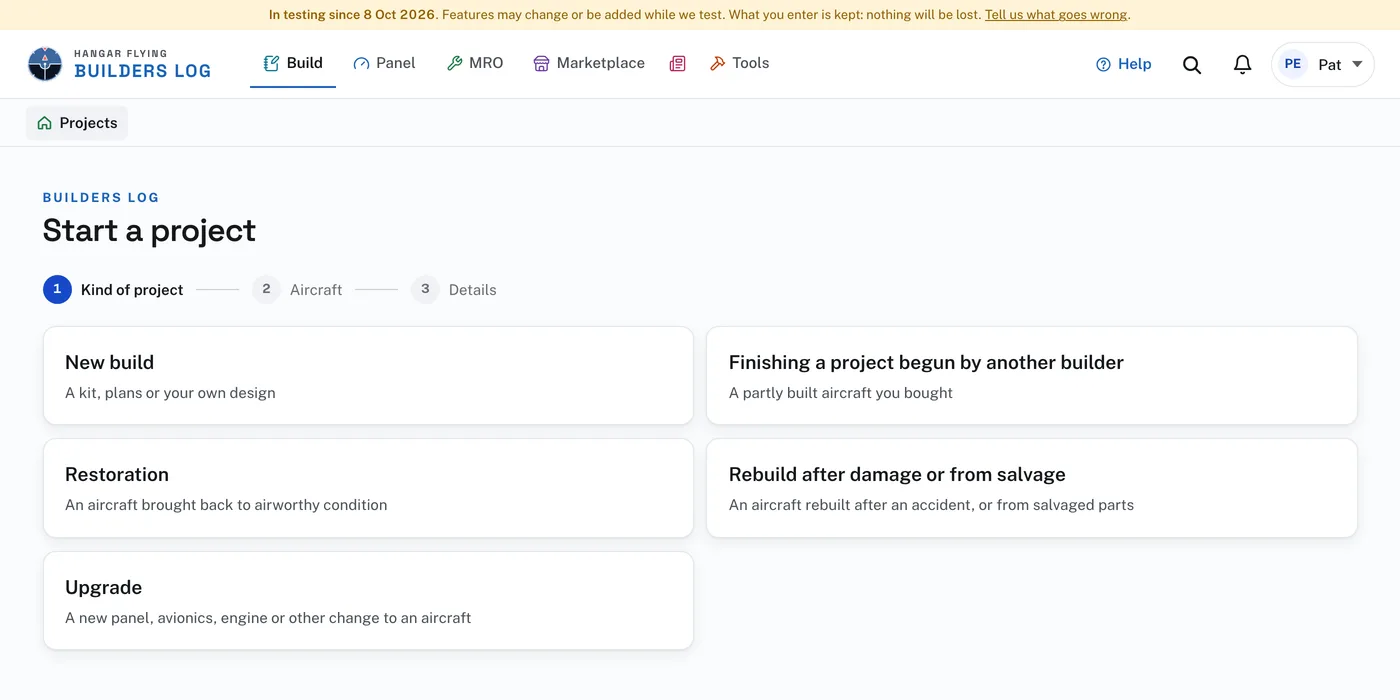
To start:
- On the Projects page press Start a project.
- Choose the kind of project: New build, Finishing a project begun by another builder, Restoration, Rebuild after damage or from salvage, or Upgrade.
- If your account already holds aircraft, choose the aircraft. One already on your account brings its registration, manufacturer, model and serial number with it. Nothing is entered again. Or choose A new aircraft (for an upgrade, a restoration or a rebuild it reads An aircraft not on this account yet).
- For a new aircraft, choose Kit, Plans or Own design. For a kit, press the manufacturer and then the model. Another manufacturer and Another model let you type them.
- Fill in Details: Serial number, Registration, Primary builder, Where the work is done, Date started and Project name. The serial number and the registration can wait until you have them.
- Press Start the project. The Log page opens, with Quick entry and New entry at the top.
To start, type what you are building (RV-14, S-21, CH 750) and press it in the list, then Start the project. More details holds the serial number, the registration and the rest, for now or later. Not building a kit? Another kind of project covers plans, your own design, a project you bought part-way, a restoration, a rebuild and an upgrade.
A new build starts with these sections: Shop preparation, Delivery or pickup, Empennage, Wings, Fuselage, Landing gear, Powerplant, Electrical and avionics, Interior, Paint and finish, and Final assembly. An upgrade starts with Planning and parts, Removal, Installation, Wiring and Checkout. Change them on the Plan page to match your plans.
An Upgrade (a new panel, avionics, an engine change) is a project of its own on an aircraft, with its own sections and its own Date completed. An aircraft can have as many as it needs, one after another or at once.
The Project page shows what you entered. Edit these details opens it to change; press Save changes. Enter Airworthiness certificate issued (Date completed, on an upgrade) when that day comes.