
Click the instrument that should stay put first (the anchor), then Shift-click the ones to move. Then click one of the seven Align buttons in the tool row:
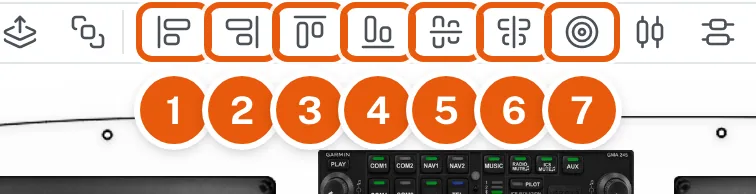
- Align Left (1), Align Right (2), Align Top (3) or Align Bottom (4) lines up that edge with the anchor's.
- Center Vertically (5) moves the others up or down so their centers are level with the anchor's center.
- Center Horizontally (6) moves them across so their centers line up above or below the anchor's center.
- Align Centers (7) does both.
Point at a button to see its name.
A group aligns as one piece. Its outer edge, or its center, lines up with the anchor, and the instruments in the group keep their spacing: three grouped switches line up with three other grouped switches as two rows. When the anchor is in a group, the others line up with that group's outer edge or center. A group with a locked instrument in it stays where it is.
Distribute instruments evenly

Three buttons to the right of the Align buttons space a row or a column of instruments evenly. The order you select them in does not matter.
- Distribute Horizontally: select three or more instruments. The leftmost and the rightmost stay where they are, and the ones between move across so the gaps between neighbors, edge to edge, are all the same.
- Distribute Vertically does the same up and down: the top and bottom instruments stay put.
- Distribute Across a Total: select two or more instruments and a box opens. Choose Across or Up and down and enter the Total width (or Total height) in inches, measured from the first instrument's leading edge to the last one's far edge. The box starts with what the selection measures now. The leftmost (or top) instrument stays where it is; the others are spaced evenly so the whole row measures exactly that total. If the total is less than the instruments measure side by side, the box says so and nothing moves.
The instruments stay selected after an Align or Distribute button, so you can line a row up and then space it without selecting it again.

A group moves as one piece and keeps its own layout. A locked instrument stays where it is and is left out of the spacing. Undo puts everything back in one step.