
Change template puts a different panel template under a design you have already laid out, for example another model of your aircraft, or the panel you finally chose. Nothing on the design is deleted.
Change it
- Open the design.
- Click Template at the right of the line under the tool row, then Change template in the card that opens.
- A list of templates opens, the same list as on the New panel design page, with the design's own template at the top. Type in the search box to shorten it: a manufacturer, a model or a keyword.
- Click the template you want, then press Change template.
- Check the design, then press Save. Until you save, the design you saved last is unchanged.
Where everything goes
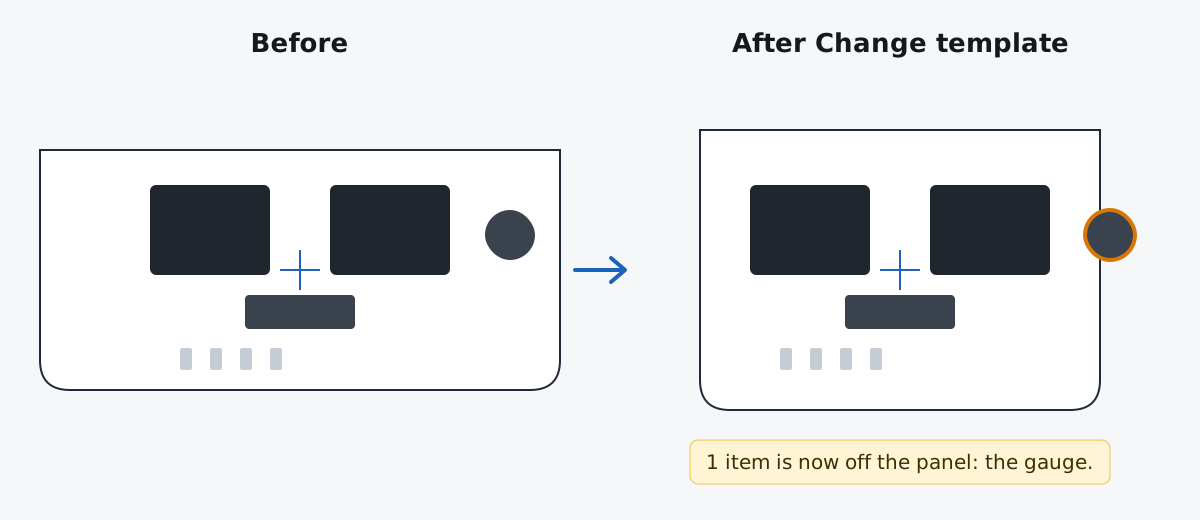
Everything keeps its place measured from the center of the panel, in inches, the way the X / Y readout measures it. An instrument 3 inches left of center and 1 inch up stays 3 inches left of center and 1 inch up on the new template, at its own size. This holds for:
- instruments, switches and breakers;
- add-on panel pieces;
- placards on their own (a placard attached to an instrument, or a span placard on a row, moves with its instruments as it always does);
- construction lines;
- groups and locked items, which keep their group and their lock.
The extra space above and below the panel keeps its inches. The panel color stays as it was.
When the new panel is smaller
If an item that was on the old panel is not wholly on the new one, the box names it: for example 2 items are now off the panel: GTN 650 and G5. Nothing is moved onto the panel for you. Select those items and move them where you want them (drag, the arrow keys, or Move / Space). Items that were already off the old panel, such as instruments on an add-on piece below it, are not named.
Undo
Undo puts the old template back with everything exactly where it was, and Redo changes it again. As with every step, this works until the page is reloaded; see Undo and redo.
Who can use it
Change template is a member tool. It is in every design's Template card; without a membership it is grayed, and clicking it says how to get one. On a design shared with our shop for CAD, Cut, Paint & Label, only the design's owner can change its template.