
Everything with a clock on it is here: the 14 CFR 91.411 and 91.413 checks, the ELT, a VOR check, an oil change on the tach, an ELT battery’s replace-by date, and anything of your own. The schedule is listed soonest first. Red is overdue; amber is coming close. Open an item to press “Record it done” or “Remove from the schedule”.
To add an item:
- Press “Add a recurring item” and choose the item, or name your own.
- Enter when it was last done: the date, and the hours if it runs on hours. For an ELT battery, enter the replace-by date.
- Leave the interval blank to use the regulation’s own. Set months, days or hours for anything else.
- Press “Add to the schedule”.
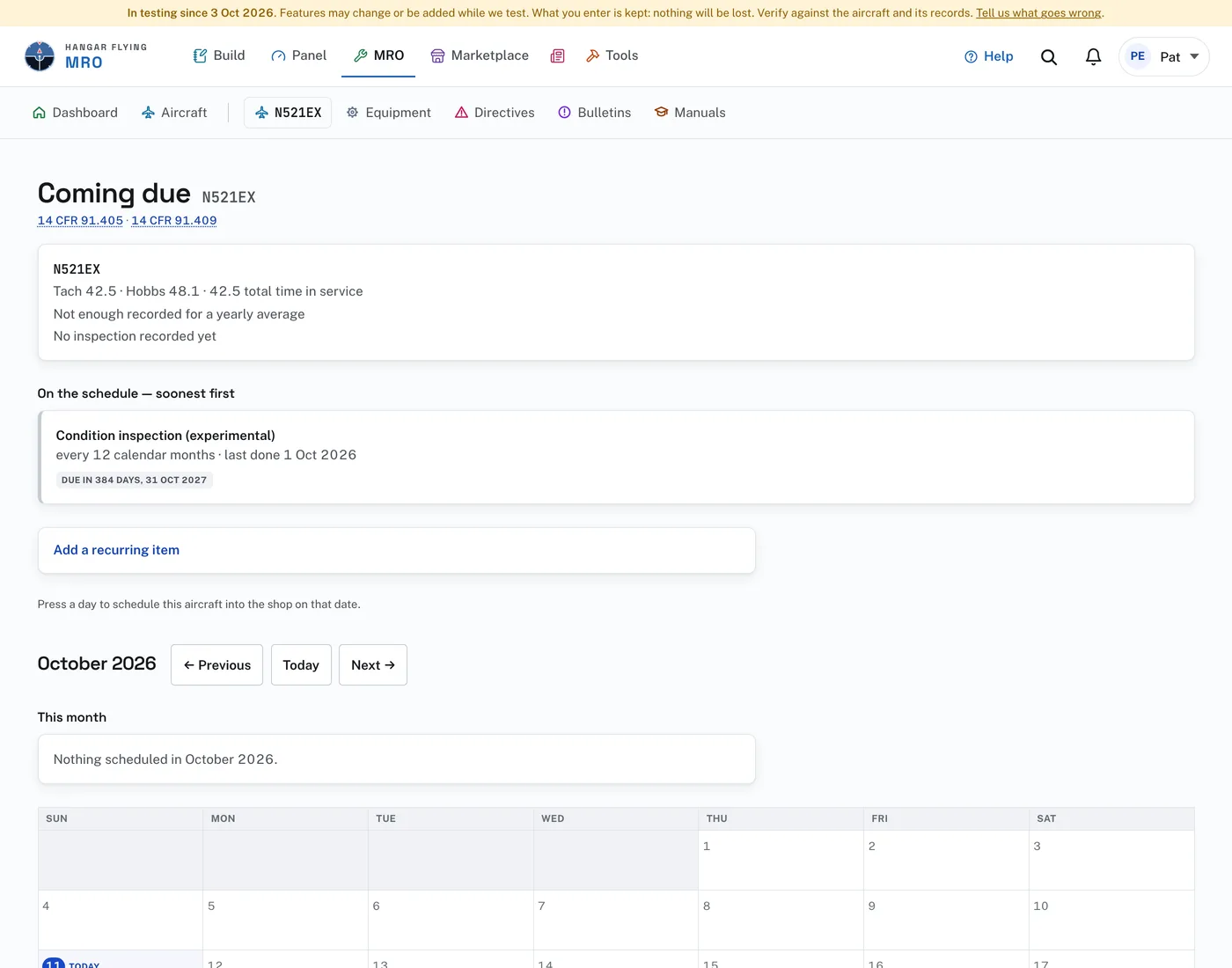
Under the schedule is the aircraft’s calendar. Press a day to schedule the aircraft into the shop on that date.
When an original logbook is read, the inspections and recurring items its entries show done are put on the schedule, the last annual or condition inspection first. Each one is announced on the bell with the entry it came from. A date already on file is never moved backwards.
The list of items includes “Condition inspection (experimental)” and “Annual inspection (certified)”. Those two set the aircraft’s own last-inspection date, which the next due date and the Coming due list read from. Choose the one the aircraft’s certificate calls for. A condition inspection is not an annual.
An email carries what is overdue or coming due across the account. It is sent when something changes, not every day. AD next-due dates, inspection due dates, deferred work and parts on order all feed it, as they feed the Dashboard’s Coming up list. Coming-due alerts are set on the MRO tab of your Profile.